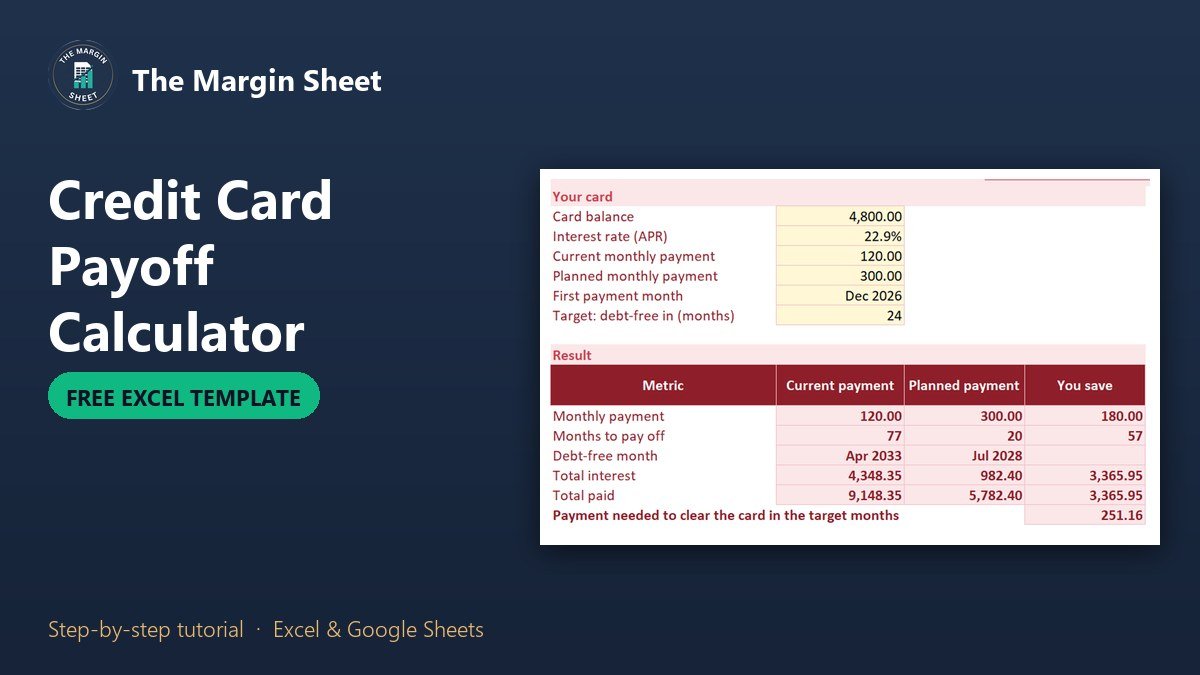
A credit card payoff calculator in Excel takes your balance, your APR and a monthly payment, and tells you how many months the card will last, how much interest you will pay and the month you become debt-free. To build one, enter the balance and rate, then let a monthly schedule work out interest, payment and remaining balance. The free template below does that for two payments side by side, so you can see what paying more really saves.
Free download
Credit Card Payoff Calculator practice file (.xlsx)
Working formulas, sample data and a How to use sheet. Opens in Excel, or import it into Google Sheets.
What this credit card payoff calculator does
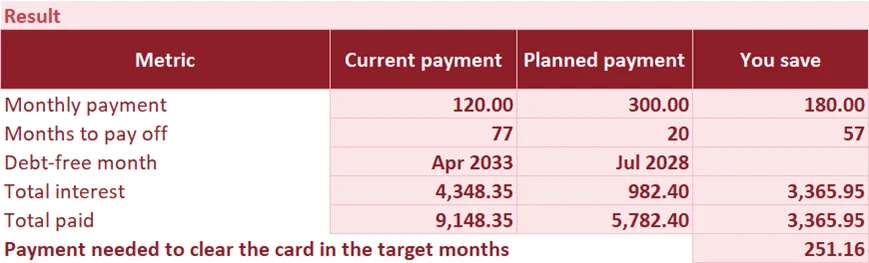
The calculator compares two ways of paying the same card: the payment you make now and a higher payment you are considering. On the sample card, a balance of 4,800.00 at 22.9% APR, paying 120.00 a month takes 77 months and costs 4,348.35 in interest. Paying 300.00 a month clears it in 20 months and costs 982.40 in interest. The difference is 3,365.95 in interest and 57 months of your life.
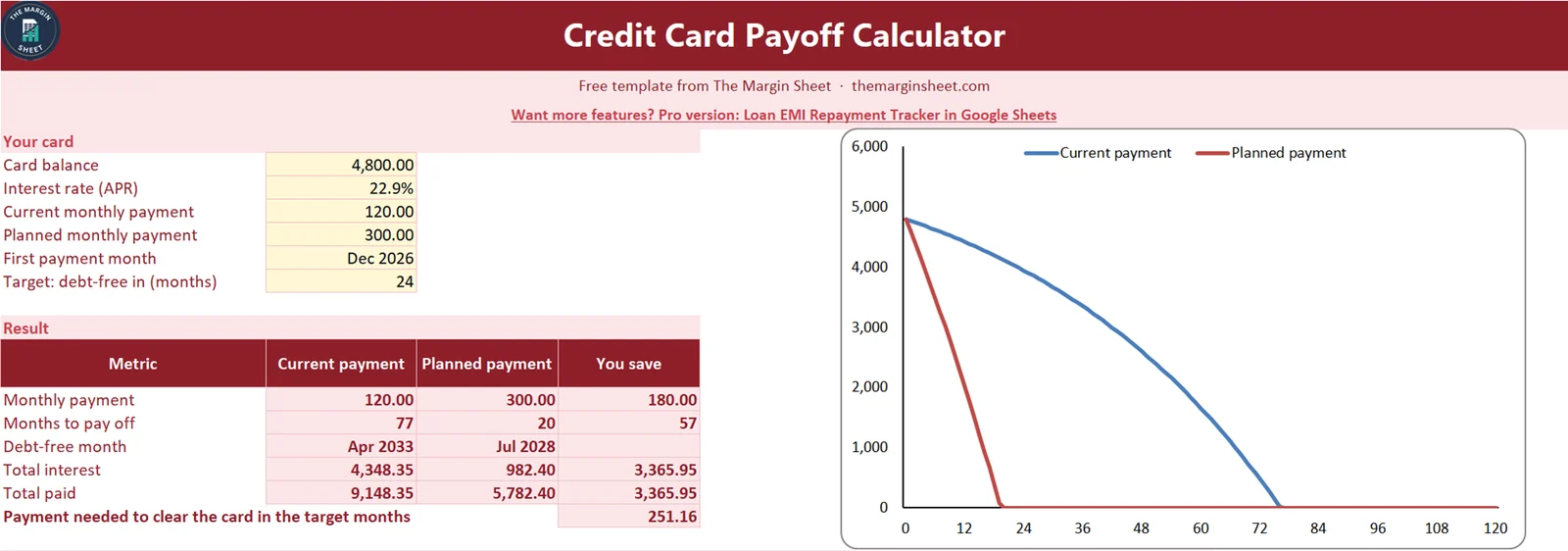
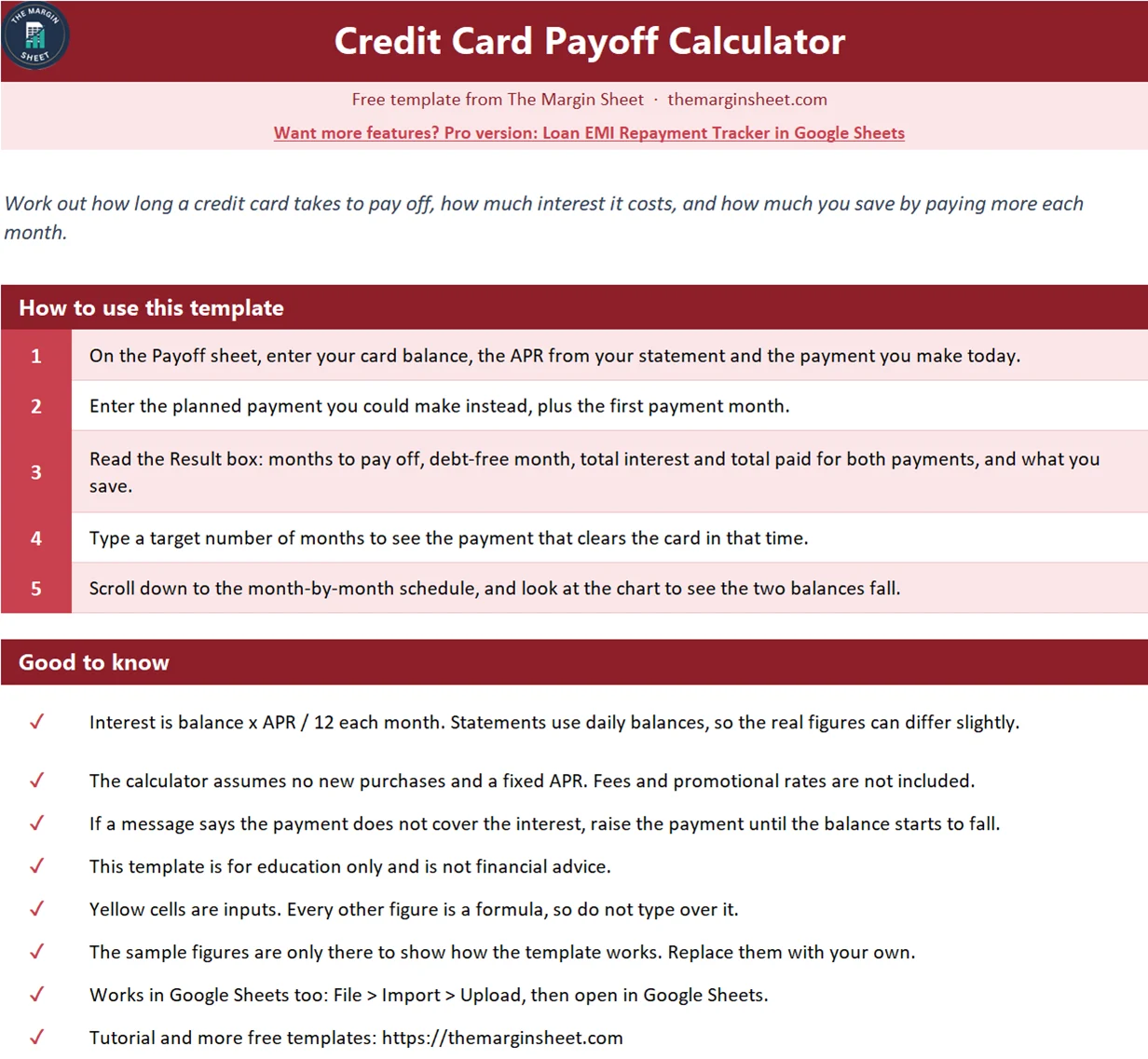
Yellow cells are inputs. Every other number is a formula, so you change the yellow cells and read the answer. The file works in Excel and, if you upload it to Google Drive and open it with Google Sheets, in Google Sheets too.
This is a calculator for planning. It is education only, not financial advice, and it does not know the fine print of your card agreement. Check your statement for the exact APR and any fees.
What you need before you start
- The current balance from your latest statement.
- The APR, which is printed on the same statement.
- The payment you make today, and the payment you could make if you cut something else.
- The month you will make the first payment.
How the payoff math works
A card charges interest every month on what you still owe. The monthly rate is the APR divided by 12. At 22.9% that is 1.9083% a month, so the first month on a 4,800.00 balance costs 91.60 in interest.
Your payment first covers that interest, and only the rest reduces the balance. With a 120.00 payment, 91.60 goes to interest and just 28.40 to the balance. With a 300.00 payment, 91.60 still goes to interest, but 208.40 reduces the balance. That is why a bigger payment saves so much: the balance drops faster, so next month’s interest is smaller too.
If your payment is no bigger than the monthly interest, the balance never falls. The template warns you in cell A11 when that happens.
How to build the credit card payoff calculator in Excel
You can use the template as it is, or build your own using these steps. All cell addresses match the free file.
Step 1: Enter the inputs
On a sheet called Payoff, put the card balance in B5, the APR in B6, the current monthly payment in B7, the planned payment in B8, the first payment month in B9 and a target number of months in B10. Format B6 as a percentage and B9 as a month and year.
Step 2: Set the opening balance
Row 24 is the opening row. Put 0 in B24 as the month number and link both opening balances to the card balance:
=$B$5
Enter that in E24 for the current payment and in H24 for the planned payment.
Step 3: Calculate the monthly interest
In C25 (current payment) work out one month of interest on the balance above it, rounded to cents. Stop when the balance reaches zero:
=IF(E24<=0,0,ROUND(E24*$B$6/12,2))
The planned payment uses the same formula in F25, pointing at H24.
Step 4: Calculate the payment
The payment is the amount you chose, except in the last month, when you only pay what is left plus its interest:
=IF(E24<=0,0,MIN($B$7,E24+C25))
Put that in D25. The planned version in G25 uses $B$8 and H24.
Step 5: Calculate the new balance
The balance after the payment is the old balance plus interest minus the payment:
=IF(E24<=0,0,ROUND(E24+C25-D25,2))
Put that in E25, and the planned version in H25. Then fill rows 25 to 144 downward. That gives 120 months, or ten years, which is long enough for most cards. In B25 add =B24+1 for the month number and in A25 use =EDATE($B$9,B25-1) for the month name.

Step 6: Read the results
The result box compares the two payments. Months to pay off counts the months that still had a payment:
=COUNTIF(D25:D144,">0")
The debt-free month adds those months to the first payment month. Months to pay off sits in B15, so:
=EDATE($B$9,B15-1)
Total interest is the sum of the interest column, and total paid is the sum of the payment column:
=SUM(C25:C144)
The You save column in D subtracts the planned figures from the current ones.
Step 7: Find the payment for a target date
Sometimes you start from the date, not the payment. If you want the card gone in 24 months, ask Excel for the payment that does it:
=ROUNDUP(-PMT(B6/12,B10,B5),2)
On the sample card that returns 251.16 a month. Change B10 to 12 and the answer rises, change it to 36 and it falls.
A quicker check with NPER
If you only need the number of months and not the whole schedule, Excel has a single function for it. For the planned payment, =NPER(B6/12,-B8,B5) returns about 19.3 months, which rounds up to the 20 payments in the schedule, because the last payment is smaller. The schedule is still worth having, because it gives you the real total interest and the month-by-month balance.
Reading the chart
The line chart plots both balances from month 0 to month 120. The planned payment line drops steeply and hits zero around month 20. The current payment line curves down slowly and reaches zero near month 77. The gap between the two lines is the cost of paying the minimum-style amount.
How to adapt it to your own card
- Replace the sample balance, APR and payments in the yellow cells.
- Try several planned payments, one after another, and write down the total interest each time.
- Use the target months cell to find the payment that fits your goal, then check it against your budget.
- If you have more than one card, make a copy of the sheet for each, or use the debt snowball spreadsheet to decide which card to attack first.
- For a fixed loan with a set term, the loan amortization schedule works the same way.
Common mistakes
- Using the monthly rate wrong. The APR must be divided by 12 before it is applied each month. Typing 22.9% as the monthly rate multiplies the interest by twelve.
- Forgetting new purchases. The calculator assumes you stop using the card. If you keep adding purchases, the real payoff date moves later.
- Treating the result as exact. Card issuers work with daily balances and billing cycles, so the real figures can differ by a few dollars.
- Ignoring promotional rates. A 0% balance transfer offer changes the math. Set the APR to the rate you will really pay after the promotion ends.
- Counting only the minimum. A minimum payment that is a small percentage of the balance shrinks each month, so it can take far longer than a fixed payment of the same starting size.
Excel and Google Sheets notes
Every function used here exists in both: EDATE, COUNTIF, SUM, MIN, ROUND, PMT and NPER. To use the file in Google Sheets, upload it to Google Drive and open it with Google Sheets, or use File > Import. Browse more free sheets on the free templates page.
Next step
Enter your own balance and APR, set the planned payment to the most you can really afford each month, and write down the debt-free month. Then check the plan again each time you get a statement.
Want more?
Loan EMI Repayment Tracker in Google Sheets
If you repay several loans and cards and want to log each payment and watch the balances fall month by month, the full tracker does that in Google Sheets.
Frequently asked questions
How do I calculate credit card payoff time in Excel?
Divide the APR by 12 for the monthly rate, then use NPER with the rate, the payment as a negative number and the balance. In this template, =NPER(B6/12,-B8,B5) gives about 19.3 months for a 4,800.00 balance at 22.9% paying 300.00 a month. The schedule rounds that up to 20 payments.
How much interest will I pay on my credit card?
Add up the interest column of the monthly schedule. On the sample card, paying 120.00 a month costs 4,348.35 in interest and paying 300.00 costs 982.40. Your own total depends on your balance, APR and payment.
What payment clears my card by a certain date?
Use PMT with the monthly rate, the number of months and the balance. In this template, =ROUNDUP(-PMT(B6/12,B10,B5),2) returns 251.16 a month to clear the sample card in 24 months.
Why does the calculator say my payment does not cover the interest?
If the payment is smaller than one month of interest, the balance cannot fall. Raise the payment above the monthly interest, which is balance x APR / 12, and the schedule will start reducing the balance.
Does this credit card payoff calculator work in Google Sheets?
Yes. Upload the file to Google Drive and open it with Google Sheets, or use File > Import. All the formulas work in both programs.
Free download
Credit Card Payoff Calculator practice file (.xlsx)
Working formulas, sample data and a How to use sheet. Opens in Excel, or import it into Google Sheets.
Want the finished version?
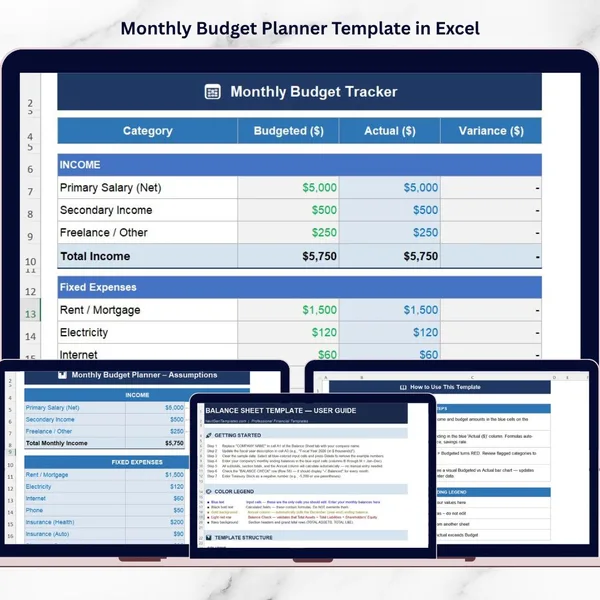
Monthly Budget Planner Template in Excel
Plan income and spending and compare budget against actual every month.
View the pro template
PK is the founder of PK: An Excel Expert and NextGenTemplates.com and a corporate trainer in Excel, VBA and Power BI. Since 2020 he and his team have built Excel and Google Sheets tutorials and templates for business users.
Education only. Not financial, tax or investment advice.