
A debt snowball spreadsheet lists your debts, sorts them by smallest balance, and pays the minimums on everything while all extra money goes to the first debt. When a debt is cleared, its payment rolls into the next one. The same sheet can switch to the avalanche method, which targets the highest interest rate first.
The free Debt Snowball & Avalanche Planner (Excel) is below, and the rest of this page shows how it is built so you can rebuild or adapt it.
Free download
Debt Snowball & Avalanche Planner (Excel)
Working formulas, sample data and a How to use sheet. Opens in Excel, or import it into Google Sheets.
What the debt payoff planner does and who it is for
The workbook has two sheets: ‘How to use’ and ‘Debt Plan’. You enter up to six debts, an extra monthly payment and a start month. The sheet then orders your debts, works out the payment on each one while it is your focus, and gives a payoff month for every debt plus a debt-free date.
It suits anyone with several balances, such as credit cards, a car loan, a student loan or a personal loan, who wants to see how a fixed extra payment changes the timeline. A dropdown lets you compare snowball vs avalanche on the same list of debts. If you only have one loan, the loan amortization schedule in Excel gives you a full month-by-month view instead.

Set up the inputs on the Debt Plan sheet
All the settings sit at the top of the ‘Debt Plan’ sheet, so you never touch the formulas below them.
| Cell | What it holds | Sample value |
|---|---|---|
| B4 | Extra payment per month | 200 |
| B5 | Method dropdown (Snowball or Avalanche) | Snowball |
| B6 | Start month | Jan-2027 |
The debt list sits in rows 8 to 13, which gives room for six debts. Column A is the name, B the balance, C the APR and D the minimum payment.
Snowball vs avalanche: what changes in the sheet
Only one thing differs between the two methods: the number the sheet uses to sort your debts. Everything else, including the rollover and the payoff months, is calculated the same way from that order.
| Snowball | Avalanche | |
|---|---|---|
| Sort key (column N) | The balance | The APR, as a negative number |
| Goes first | Smallest balance | Highest interest rate |
| First debt in the sample | Store card (650) | Store card (26.99%) |
| Second debt in the sample | Credit card A (2,400) | Credit card A (22.9%) |
In the sample list the Store card happens to be both the smallest balance and the highest rate, so the first two debts are the same under either method. The orders differ further down, where snowball puts the Car loan (9,800) after the Personal loan (4,200) and avalanche puts the Personal loan (11.5%) ahead of the Car loan (6.9%) and the Student loan (5.5%). Try your own debts to see where the two orders split.
Step-by-step: build the debt snowball spreadsheet
Step 1: Enter your debts in rows 8-13
Type each debt into its own row: name in A, balance in B, APR in C, minimum payment in D. Leave unused rows empty. The sample list has five debts: Credit card A (2,400 at 22.9%, minimum 75), Store card (650 at 26.99%, minimum 30), Car loan (9,800 at 6.9%, minimum 290), Student loan (18,500 at 5.5%, minimum 210) and Personal loan (4,200 at 11.5%, minimum 140).
Step 2: Total the balances and minimums
Row 14 holds the totals. B14 sums the balances (35,550 in the sample) and D14 sums the minimum payments (745). Check these against your statements before going further. If the totals look wrong, a balance or minimum has probably been typed into the wrong column.
Step 3: Add the hidden sort key in column N
The sheet needs a number that decides the order of the debts. In column N, starting at row 8, use:
=IF(OR(A8="",B8=""),"",IF($B$5="Avalanche",-C8,B8)+ROW()/1000000)
With Snowball selected, the key is the balance, so the smallest balance sorts first. With Avalanche selected, the key is the negative APR, so the highest rate sorts first. The ROW()/1000000 part adds a tiny amount to break ties between debts with the same balance or rate. Without it, two identical keys would make the lookup return the same debt twice.
Step 4: Pull the debts into payoff order (rows 17-22)
Column A of the payoff plan holds the order, 1 to 6. Each debt is pulled in with SMALL to find the nth smallest sort key, then INDEX/MATCH to return the name, balance, rate and minimum that belong to that key. Changing the dropdown in B5 re-sorts the whole plan.
Step 5: Calculate the focus payment
In column F, the payment you make while a debt is your focus is its own minimum, plus your extra payment, plus the minimums of all debts ahead of it in the order. In practice that is the minimum + $B$4 + SUM(E$16:E16) style rollover, where the SUM adds up the earlier debts’ minimums. This is the snowball effect: each cleared debt adds its payment to the next one.
Step 6: Find the balance left when a debt becomes the focus
A debt that is not yet your focus still gets its minimum payment each month, so its balance shrinks in the meantime. Column G handles this with:
=MAX(0,-FV(APR/12, months already passed, -minimum, balance))
FV returns the future balance after the months that have passed, and MAX(0, ...) stops it going below zero.
Step 7: Count the months with NPER
Column H gives the month each debt is paid off. For the first debt, use =NPER(D17/12,-F17,C17). For later debts, add the previous debt’s finish month to NPER(rate/12,-focus payment, balance left). If a payment does not cover the monthly interest, H shows ‘Payment too low’ rather than an error.
Step 8: Turn months into dates
Column I converts the month count into a calendar month with =EDATE($B$6,H-1). The debt-free month and the total number of months appear in B24 and B25.
Worked example with the sample figures
With 200 extra a month and the Snowball method selected, the sample plan runs like this:
| Order | Debt | Payment while it is the focus | Paid off in month |
|---|---|---|---|
| 1 | Store card | 230 | 3 (Mar-2027) |
| 2 | Credit card A | 305 | 12 |
| 3 | Personal loan | 445 | 19 |
| 4 | Car loan | 735 | 26 |
| 5 | Student loan | 945 | 43 |
The sample is debt-free in 43 months, in July 2030. The store card is first because its balance of 650 is the smallest. While it is the focus, its payment is 30 + 200 with nothing ahead of it, so 230 a month.
Once it is gone, Credit card A gets its own 75 minimum, the 200 extra and the 30 freed up by the store card, which is 305. The Personal loan then gets 140 + 200 + 30 + 75 = 445. The Car loan gets 290 + 200 + 30 + 75 + 140 = 735, and the Student loan ends up with 210 + 200 + 30 + 75 + 140 + 290 = 945. This is the rollover in action: the monthly total you pay stays the same, but more of it lands on one debt at a time.
These months were cross-checked against a month-by-month simulation and match exactly. They are still estimates, because they assume fixed rates and fixed payments.
How to compare the two methods on your own numbers
Set B5 to Snowball, note the debt-free month in B25, then switch to Avalanche and note it again. Because the sheet recalculates the whole plan, you can see both timelines on your own figures rather than relying on a rule of thumb. If the two dates are close, the choice often comes down to which order you will actually stick with.
Many people choose snowball because small debts disappear quickly, which is a motivational choice. Others prefer a debt avalanche spreadsheet because the order follows interest rates. The template is for comparing options and is education only, not financial advice.
How to adapt the planner
- Change B4 to see how a larger or smaller extra payment moves the debt-free date.
- Change B6 to your real start month so the payoff dates match the calendar.
- Replace the sample debts in rows 8-13 with your own. Clear unused rows entirely.
- Use your monthly surplus from a cash flow forecast template in Excel to pick a realistic extra payment.
- Self-employed? Compare the extra payment with your monthly profit using the profit and loss template in Excel.
Keeping the plan up to date
A payoff plan is only useful while it matches reality. Once a month, compare the balances on your statements with the plan and update column B if they have drifted. If a rate changes, edit the APR in column C and the whole plan recalculates.
If you receive a lump sum or your income changes, adjust B4 and read the new debt-free month in B25. Make one change at a time so you can see which one moved the date.
Common mistakes
- Leaving a name or balance blank on a used row. The sort key returns an empty value if A or B is empty, so that debt drops out of the plan.
- Entering APR in the wrong format. Type 22.9% as a percentage, not as 22.9, or the interest calculation will be wildly off.
- Setting a minimum that does not cover interest. The sheet shows ‘Payment too low’ for that debt. Check the minimum against your statement.
- Forgetting rates can change. Variable-rate cards and loans will move away from the estimate, so update the sheet when rates change.
- Not rolling over the payment in real life. The plan only works if you keep paying the freed-up amount toward the next debt.
- Adding new borrowing while you pay down the list. The sheet only knows the debts you enter, so new balances need their own row.
Excel vs Google Sheets notes
The template is built in Excel. Every function it uses (SMALL, INDEX, MATCH, FV, NPER, EDATE) also exists in Google Sheets, so the debt snowball calculator in Excel can be uploaded to Drive and opened there. After uploading, check that the dropdown in B5 still works and that dates in column I display as months. Format column I as a date if it shows a number.
If you want a single debt broken down payment by payment, the loan amortization schedule is the better tool. For related formulas, see the profit margin formula guide, and browse all of the free templates.
Want a full budget around your payoff plan?
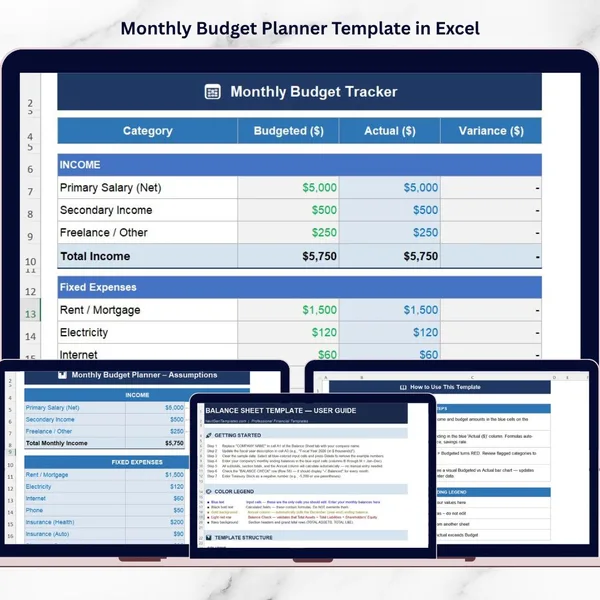
If you would like your debt payments to sit inside a complete monthly budget, the Monthly Budget Planner Template in Excel is a paid option. The free planner above works fine without it.
Your next step
Download the planner, replace the sample debts with your own, and write down the debt-free month for both methods. New to the site? The start here guide shows where to find more templates.
Frequently asked questions
What is a debt snowball spreadsheet?
It is a sheet that lists your debts, pays the minimum on each, and sends all extra money to the smallest balance first. When that debt is paid, its payment rolls into the next one. It shows a payoff month for each debt and a debt-free date.
What is the difference between snowball and avalanche?
Snowball orders debts by smallest balance, and avalanche orders them by highest interest rate. In the free template you switch between them with the dropdown in B5 and compare the debt-free month in B25.
How many debts can the planner hold?
The Debt Plan sheet holds up to six debts in rows 8 to 13. The sample uses five: Credit card A, Store card, Car loan, Student loan and Personal loan.
Why does the sheet show 'Payment too low'?
That message appears when the payment does not cover the monthly interest on the debt, so the balance would never fall. Check the minimum payment and APR you entered, or raise the extra payment in B4.
Are the payoff dates exact?
They are estimates. The sheet assumes fixed rates and fixed payments, so variable rates or missed payments will change the real dates. This is education only, not financial advice.
Free download
Debt Snowball & Avalanche Planner (Excel)
Working formulas, sample data and a How to use sheet. Opens in Excel, or import it into Google Sheets.
Want the finished version?
Monthly Budget Planner Template in Excel
Plan income and spending and compare budget against actual every month.
View the pro template
PK is the founder of PK: An Excel Expert and NextGenTemplates.com and a corporate trainer in Excel, VBA and Power BI. Since 2020 he and his team have built Excel and Google Sheets tutorials and templates for business users.
Education only. Not financial, tax or investment advice.