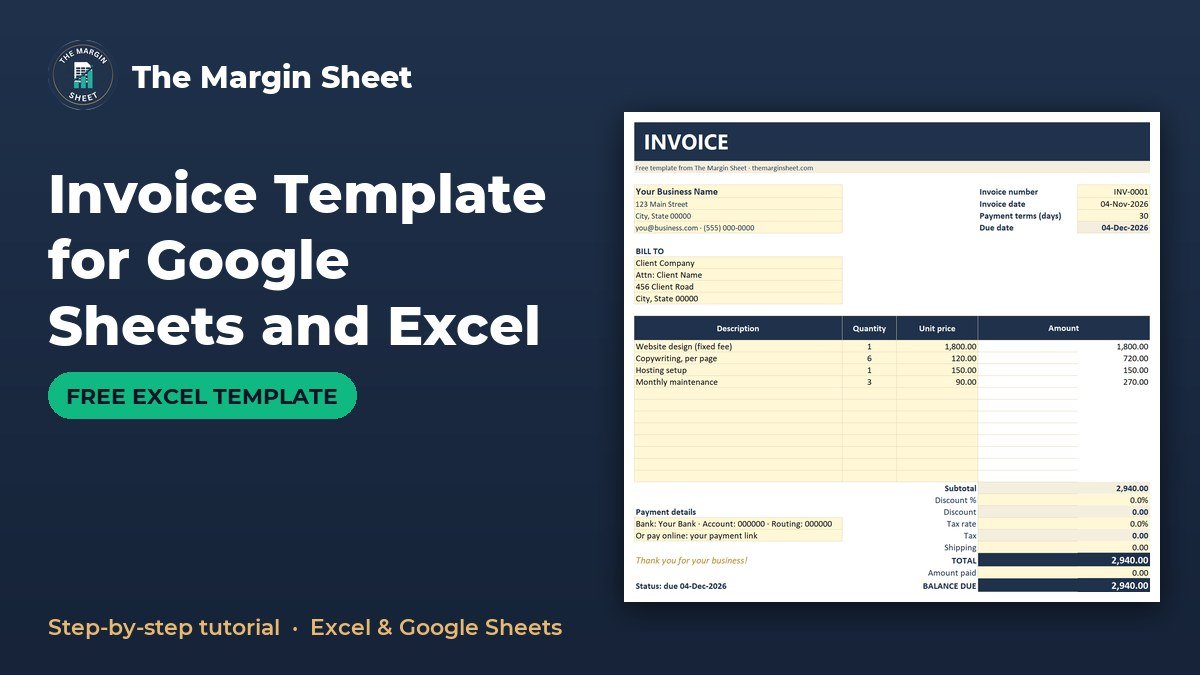
An invoice template for Google Sheets is a spreadsheet that works out line amounts, discount, tax, total and balance due for you, then calculates the due date from the invoice date and payment terms. To make one, enter your business details, add line items with quantity and unit price, and let formulas such as =E5+E6 and =SUM(D16:D27) do the arithmetic. The free template is below, ready to open in Google Sheets or Excel.
Free download
Invoice Template (Excel / Google Sheets)
Working formulas, sample data and a How to use sheet. Opens in Excel, or import it into Google Sheets.
Want the fuller free version? It adds a customer dropdown that fills in the Bill To details, an Invoice Log with status, a How to Build sheet and a Google Sheets copy link. Get the Free Invoice Template in Excel and Google Sheets, free to download.
What this invoice template does and who it is for
This is a free invoice template built for freelancers, small-business owners and contractors who bill a handful of clients and do not want to pay for invoicing software. You type in what you sold, and the sheet calculates every amount, the due date and the balance.
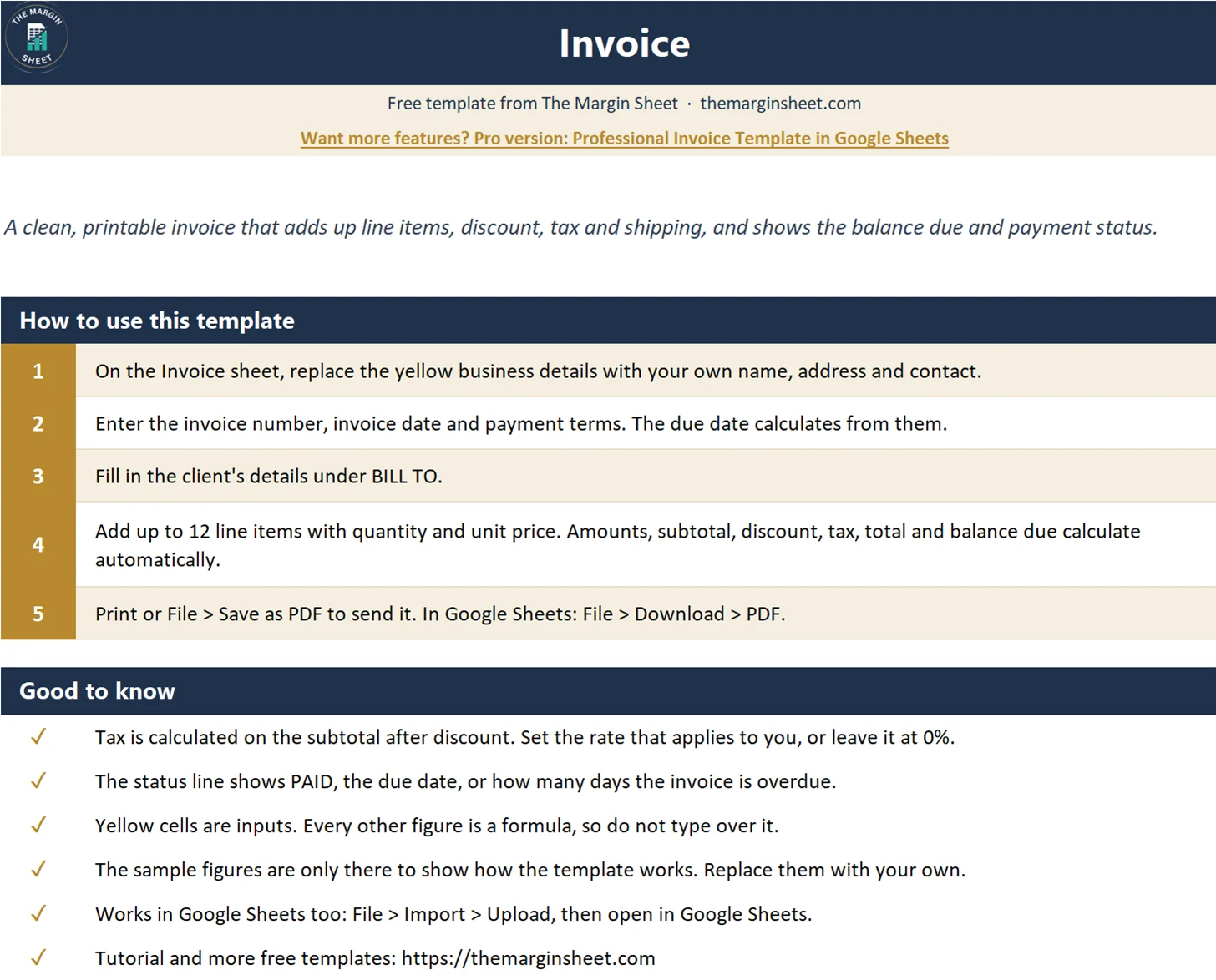
It is one file that works as an invoice template in Excel and in Google Sheets. It has two sheets: How to use and Invoice. The Invoice sheet has 12 line-item rows, a discount, a tax rate, shipping, an amount-paid field and a status line that tells you whether the invoice is paid, due or overdue.
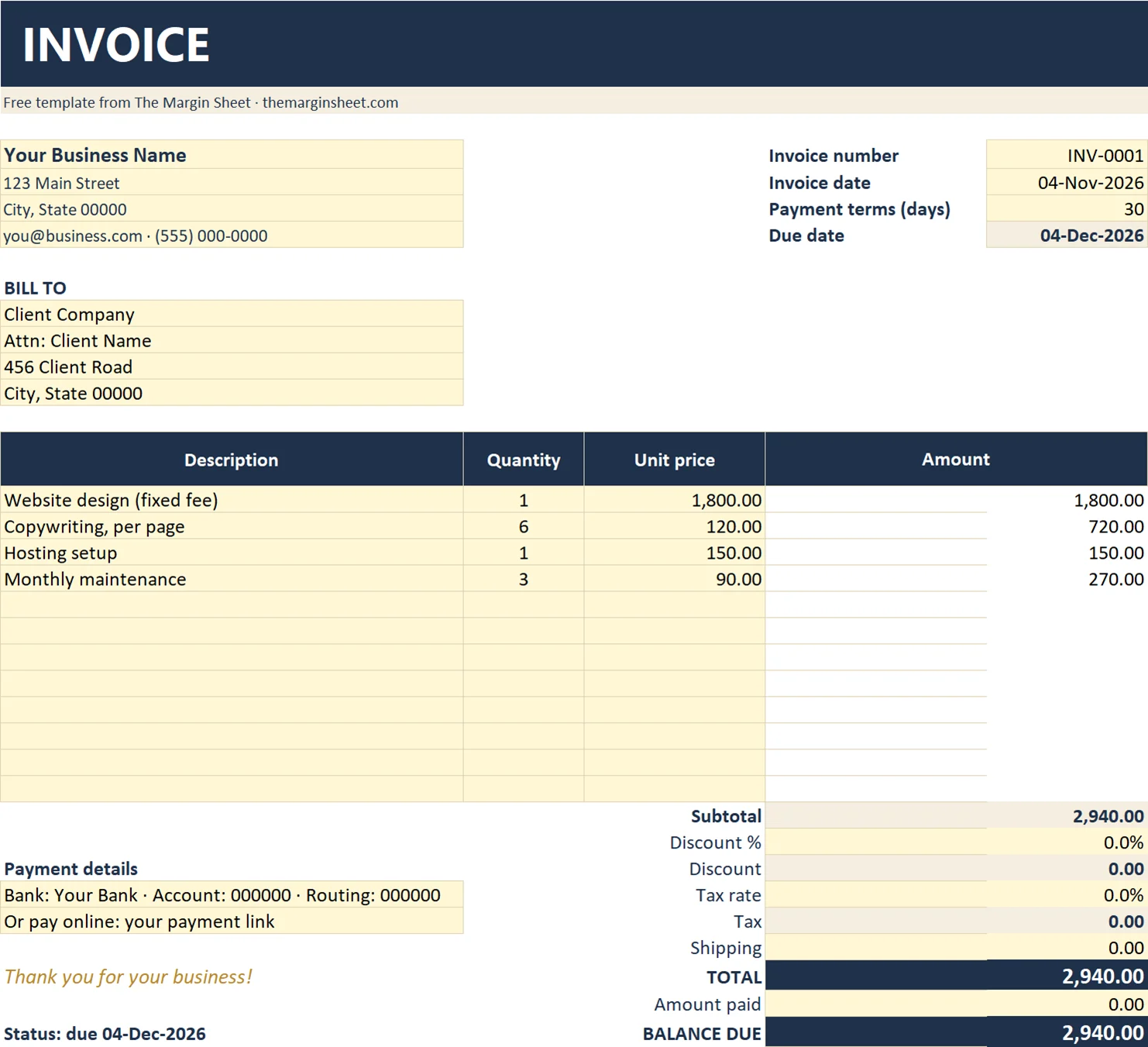
Yellow cells are the inputs. Everything else is a formula, so you change the yellow cells and leave the rest alone. The layout has no gridlines, which makes the printed or PDF version look clean.
The How to use sheet is a short guide inside the file itself. Read it once, then work on the Invoice sheet. You can delete nothing and still send a professional-looking invoice.
What the finished invoice contains
Before building anything, it helps to see where each piece sits. The table below lists the main blocks and their cells.
| Block | Cells | What goes there |
|---|---|---|
| Business details | A4:A7 |
Your name, address and contact details (yellow inputs) |
| Invoice number | E4 |
Sample: INV-0001 |
| Invoice date | E5 |
Sample: 04-Nov-2026 |
| Payment terms (days) | E6 |
Sample: 30 |
| Due date | E7 |
Formula: =E5+E6 |
| Bill To | A10:A13 |
Your client’s details |
| Line items | A16:D27 |
12 lines under the header row 15 |
| Totals | D28:D36 |
Subtotal through balance due |
| Payment details | A31:A32 |
How the client should pay you |
| Status line | A36 |
PAID, due or overdue |
How to open it in Google Sheets or Excel
In Excel, open the file as normal. In Google Sheets, go to Google Drive, choose New, then File upload, and open the uploaded file with Google Sheets. If you are already inside Sheets, use File > Import instead.
Once it is open, make a copy of the file before you start typing. Keep the clean original so you can start a fresh invoice any time.
How to make an invoice in Google Sheets: step by step
You can download the template and skip the build, or follow these steps to see how each part works and to make your own version from a blank sheet.
Step 1: Add your business details
Type your business name, address and contact details into A4:A7. These are yellow input cells, so they are the only place you need to edit your own information. Put the business name first, then the address lines, then an email or phone number.
Step 2: Set the invoice number, date and terms
Use E4 for the invoice number (the sample is INV-0001), E5 for the invoice date (04-Nov-2026) and E6 for payment terms in days (30). Increase the number by hand for each new invoice. A consistent numbering pattern makes invoices easy to find later.
Step 3: Use the invoice due date formula
In E7 enter =E5+E6. Spreadsheets store dates as numbers, so adding days to a date gives a new date. With the sample figures, 04-Nov-2026 plus 30 days gives 04-Dec-2026. This is the whole invoice due date formula, and it updates when you change the terms.
If the result shows as a number such as 46360 instead of a date, format E7 as a date. The value is right, only the display is wrong.
Step 4: Fill in the Bill To block
Enter your client’s name and address in A10:A13. Use the name of the person or company that will pay the invoice, since that is who their accounts team will look for.
Step 5: Create the line items
Row 15 holds the headers: Description, Quantity, Unit price and Amount. Rows 16 to 27 give you 12 lines. In D16 enter:
=IF(OR(B16="",C16=""),"",B16*C16)
The IF(OR(...)) wrapper keeps the amount blank until both quantity and unit price are filled in, so empty rows do not show zeros. Copy the formula down to D27.
Each line then needs only three entries: a description in column A, a quantity in column B and a unit price in column C. Column D fills itself.
Step 6: Build the totals block
The totals sit in column D, rows 28 to 36:
D28subtotal:=SUM(D16:D27)D29discount percentage (input)D30discount amount:=D29*D28D31tax rate (input)D32tax:=(D28-D30)*D31D33shipping (input)D34TOTAL:=D28-D30+D32+D33D35amount paid (input)D36BALANCE DUE:=D34-D35
Tax is calculated after the discount, because the formula in D32 subtracts D30 from the subtotal first. Check which approach applies to your sales with your accountant or tax authority, since the rules vary by country and state. This page is about the spreadsheet mechanics, not tax advice.
Step 7: Add the status line
In A36 enter:
=IF(D36<=0,"Status: PAID",IF(TODAY()>E7,"Status: OVERDUE by "&(TODAY()-E7)&" days","Status: due "&TEXT(E7,"dd-mmm-yyyy")))
If the balance is zero or less, it reads PAID. If today is past the due date, it shows how many days overdue and turns red. Otherwise it shows the due date. The red color comes from conditional formatting on that cell.
Step 8: Add payment details and set the print area
Put your bank or payment instructions in A31:A32. The print area is A1:E36, so only the invoice prints and the extra sheet and any notes outside that range stay out of the PDF.
Worked example with the sample figures
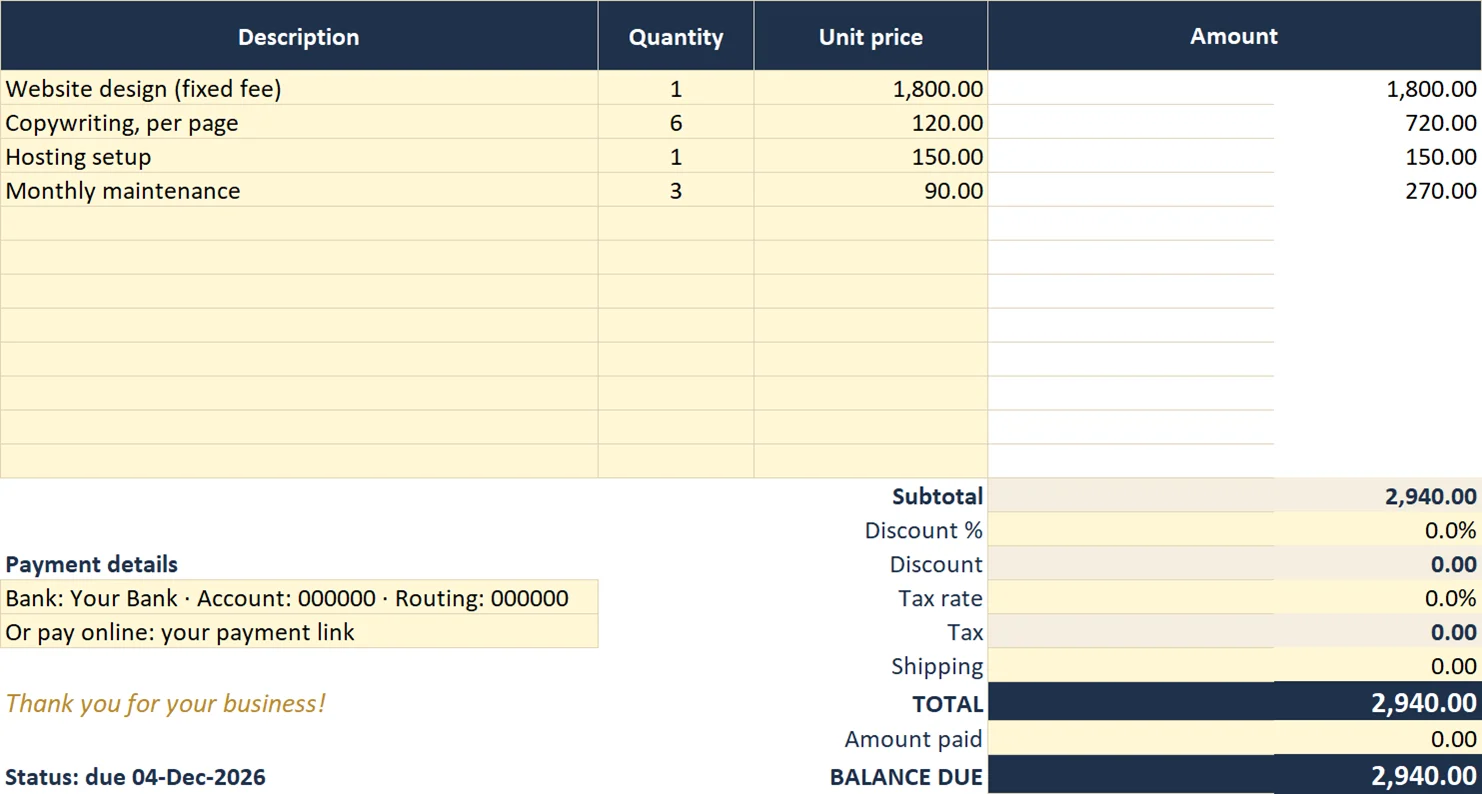
The template comes filled in so you can see the logic. Here are the four sample lines:
| Description | Quantity | Unit price | Amount |
|---|---|---|---|
| Website design (fixed fee) | 1 | 1,800 | 1,800.00 |
| Copywriting, per page | 6 | 120 | 720.00 |
| Hosting setup | 1 | 150 | 150.00 |
| Monthly maintenance | 3 | 90 | 270.00 |
The subtotal in D28 is 2,940.00. With 0% discount and 0% tax, and no shipping, the TOTAL in D34 is also 2,940.00. With nothing paid in D35, the BALANCE DUE in D36 is 2,940.00.
The invoice date is 04-Nov-2026 with 30-day terms, so the due date is 04-Dec-2026. Until that date the status line reads “Status: due 04-Dec-2026”. Enter 2,940 in D35 and it switches to “Status: PAID”.
To see the totals react, type a value in the discount and tax inputs. The discount in D30 is the percentage in D29 multiplied by the subtotal in D28. Tax in D32 is then applied to the subtotal minus that discount, and the TOTAL in D34 adds tax and shipping back on.
You can also test the overdue state. If you change the invoice date in E5 to a date well in the past, the due date moves with it and the status line turns red and counts the days late.
How to adapt the template
- Change the payment terms in
E6to 14, 45 or any number of days, and the due date inE7follows. - Enter the discount as a percentage in
D29and the tax rate inD31. Leave them at zero if they do not apply. - Record part payments in
D35to see the remaining balance inD36. - Save a copy of the file per client, or duplicate the Invoice sheet for each new invoice and change
E4. - Replace the sample descriptions in rows 16 to 19 with your own services, and use the remaining rows up to 27 for longer jobs.
- Use shipping in
D33for delivery or expenses you pass on, or leave it empty for service-only invoices. - Type your payment instructions once in
A31:A32and keep them in your saved master copy, so you never retype them.
Common mistakes
- Typing over formulas. Only edit the yellow cells. Overwriting
D34orE7breaks the automatic calculation. - Entering the tax rate as a whole number. Type 8% or 0.08, not 8, otherwise
D32multiplies the taxable amount by 8. - Leaving quantity or unit price blank. The amount stays empty by design, so a missing figure means a missing line total.
- Forgetting to update the invoice number. Change
E4each time so each invoice is unique. - Printing the wrong range. The print area is
A1:E36. If you add rows outside it, they will not appear on the PDF. - Entering the date as text. If
E5is left-aligned and the due date shows an error, retype the date so the spreadsheet recognizes it. - Forgetting to log payments. The status line only reads PAID when
D35covers the TOTAL, so enter the amount received.
Excel vs Google Sheets notes
| Task | Excel | Google Sheets |
|---|---|---|
| Open the file | Open directly | Drive > New > File upload, or File > Import |
| Save as PDF to send | Save as or export to PDF | File > Download > PDF |
| Formulas | All work as written | All work as written |
The formulas are the same in both, so the invoice template in Excel behaves the same as the Google Sheets version. The status line uses TODAY(), which recalculates each time you open the file, so the overdue count stays current.
One practical point: the status line reflects the day you open the file. If you export a PDF, it shows the status as of that moment, so export it on the day you send it.
Send it and keep going
Once the invoice is filled in, save it as a PDF and send that file, not the spreadsheet. Keep the spreadsheet copy so you can update the amount paid when the money arrives.
If you also work with loans or investments, you may find the mortgage calculator in Excel, the compound interest calculator, the NPV and IRR calculator and the DCF model template useful. They are educational tools, not financial advice. More files are on the free templates page, and the start here guide shows where to begin.
If you want a more polished layout, the Professional Invoice Template in Google Sheets is an option. For now, download the free file, replace the sample lines with your own work and send your first invoice today.
Frequently asked questions
How do I make an invoice in Google Sheets?
Enter your business and client details, add line items with quantity and unit price, and use formulas for amounts, subtotal, tax and total. In this template the amount formula in D16 is =IF(OR(B16="",C16=""),"",B16*C16). When you finish, use File > Download > PDF to send it.
What is the invoice due date formula?
Add the payment terms in days to the invoice date. In this template, E7 is =E5+E6, so an invoice dated 04-Nov-2026 with 30-day terms is due 04-Dec-2026.
Is there a free invoice template that works in both Excel and Google Sheets?
Yes, the template on this page is one file that opens in both. In Google Sheets, upload it to Drive and open it with Google Sheets, or use File > Import.
How does the invoice show if it is overdue?
The status line in A36 compares today's date with the due date in E7. If the balance is not paid and the due date has passed, it shows how many days overdue and turns red. If the balance is zero or less, it reads PAID.
How do I send the invoice to a client?
Save it as a PDF. In Google Sheets, use File > Download > PDF. The print area is A1:E36, so only the invoice itself is included.
Free download
Invoice Template (Excel / Google Sheets)
Working formulas, sample data and a How to use sheet. Opens in Excel, or import it into Google Sheets.

Want the finished version?
Cash Flow Template in Excel
Track monthly cash in and out with automatic net cash and closing balance.
View the pro template
PK is the founder of PK: An Excel Expert and NextGenTemplates.com and a corporate trainer in Excel, VBA and Power BI. Since 2020 he and his team have built Excel and Google Sheets tutorials and templates for business users.
Education only. Not financial, tax or investment advice.