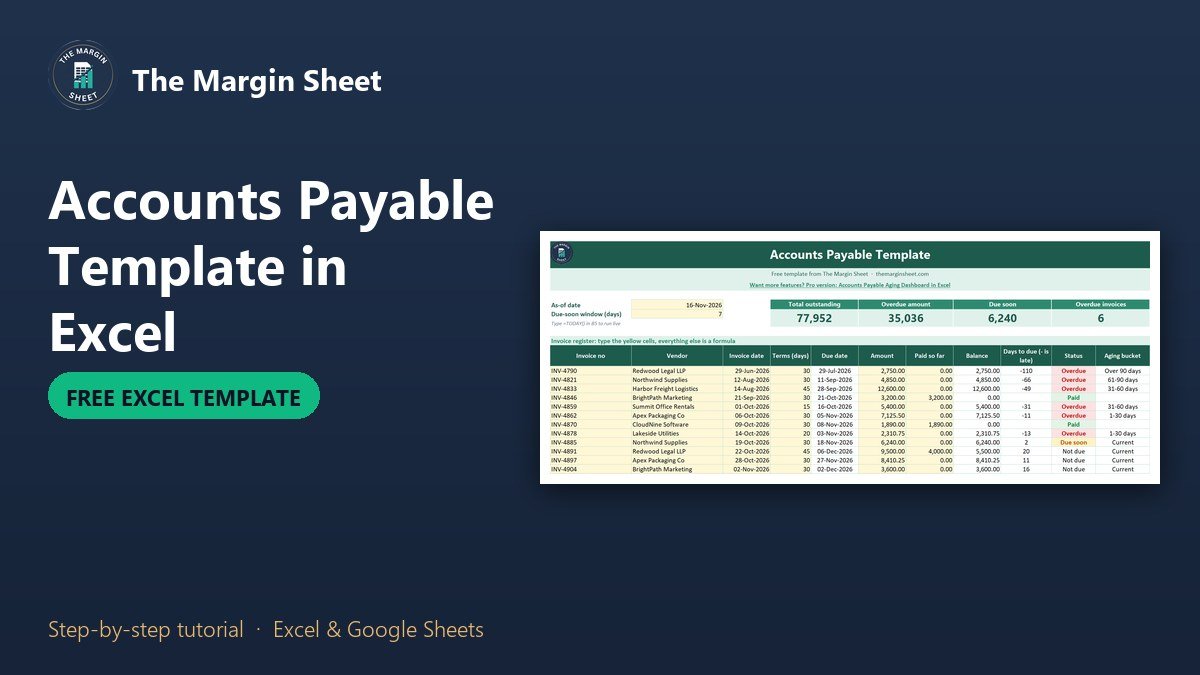
An accounts payable template in Excel lists every supplier invoice you owe, works out the due date, shows what is still unpaid and sorts the balance by how late it is. In the free template below, 15 invoices leave 77,951.50 outstanding on 16 November 2026, and 35,036.25 of that is already overdue.
Free download
Accounts Payable Template practice file (.xlsx)
Working formulas, sample data and a How to use sheet. Opens in Excel, or import it into Google Sheets.
Why a payables register beats a pile of bills
Accounts payable is the money your business owes to suppliers for goods and services it has already received. When bills live in an inbox, three things go wrong. You pay one twice, you miss the early-payment discount on another, and you find out a vendor is 60 days overdue only when they stop shipping.
A register fixes this with one row per invoice and a few formulas. It answers the questions an owner asks every week: what do we owe, what is due this week and who are we late with? If you also track cash coming in, it pairs well with the cash flow forecast template.
What is inside the free accounts payable template
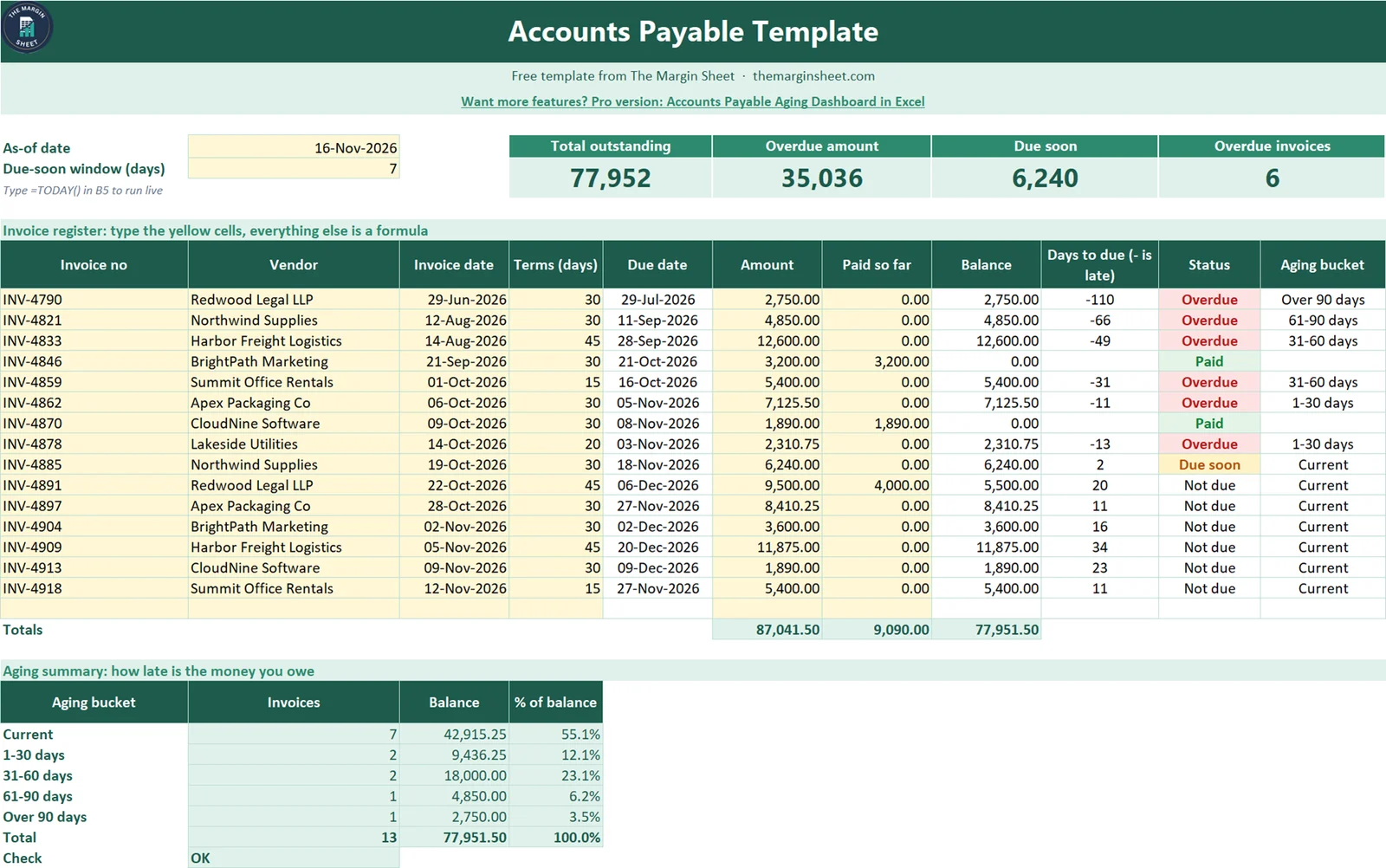
The workbook has a How to use sheet and one Payables sheet. It has no macros and it opens in Google Sheets. Four cards at the top show total outstanding, overdue amount, the amount due soon and the number of overdue invoices. Below them is the invoice register with room for 16 rows, and under the register sits an aging summary with a check cell.
The sample data is made up. The as-of date is 16 November 2026 and the due-soon window is 7 days. Change both in the yellow cells at the top, or type =TODAY() in the date cell and the sheet updates itself every morning.
Who this template is for
- A small business owner who pays suppliers by hand and wants one clear list of what is due.
- A bookkeeper who needs a quick aging report before a month-end close.
- A freelancer or shop owner who is growing and has started to buy on credit terms.
This is educational content, not accounting or tax advice. Payment terms and rules differ by supplier and country, so confirm anything important with your accountant.
How to build the accounts payable calculation step by step
The two inputs sit in B5 (as-of date) and B6 (due-soon window). The register starts in row 11. Column A holds the invoice number, B the vendor, C the invoice date, D the terms in days, F the amount and G the amount paid so far.
Step 1: Calculate the due date
The due date is the invoice date plus the payment terms. In E11:
=IF(C11="","",C11+D11)
The first invoice is from Redwood Legal LLP, dated 29 June 2026 on 30 day terms, so it fell due on 29 July 2026. The empty test keeps unused rows blank instead of showing a date from 1900.
Step 2: Find the balance still owed
The balance is the amount minus what you have paid so far. In H11:
=IF(F11="","",F11-G11)
Redwood Legal LLP has a second invoice, INV-4891, for 9,500.00 with 4,000.00 already paid. The balance column shows 5,500.00, so a part payment never hides what remains.
Step 3: Count the days to the due date
Subtract the as-of date from the due date. A negative number means the invoice is late. Paid invoices should show nothing, so test the balance first. In I11:
=IF(OR(F11="",N(H11)<=0),"",E11-$B$5)
INV-4790 shows -110, which means it is 110 days past due. INV-4885 from Northwind Supplies shows 2, so it is due in two days. The N function turns a blank cell into zero, which keeps the formula from failing on empty rows.
Step 4: Set the status
Status turns the numbers into a word you can scan. In J11:
=IF(F11="","",IF(H11<=0,"Paid",IF(E11<$B$5,"Overdue",IF(E11-$B$5<=$B$6,"Due soon","Not due"))))
The order matters. A zero balance is Paid first. After that, a due date before the as-of date is Overdue, a due date inside the window is Due soon and everything else is Not due. Conditional formatting colors the words red, amber and green so the problems stand out.

Step 5: Assign an aging bucket
Aging groups the unpaid balance by how long it is late. This is the report lenders and accountants ask for first. In K11:
=IF(OR(F11="",N(H11)<=0),"",IF(E11>=$B$5,"Current",IF($B$5-E11<=30,"1-30 days",IF($B$5-E11<=60,"31-60 days",IF($B$5-E11<=90,"61-90 days","Over 90 days")))))
INV-4833 from Harbor Freight Logistics is 12,600.00, dated 14 August on 45 day terms. It was due on 28 September, which is 49 days ago, so it lands in the 31-60 days bucket. Labels like 1-30 days are written with the word days on purpose. A bare 1-30 can be read as a date by COUNTIF and SUMIF and then match nothing.
Step 6: Build the aging summary
The summary counts and adds the balances for each bucket. In B31 and C31:
=COUNTIF($K$11:$K$26,A31)
=SUMIF($K$11:$K$26,A31,$H$11:$H$26)
The result is easy to read. Current holds 7 invoices worth 42,915.25, which is 55.1% of the balance. The 1-30 days bucket holds 2 invoices worth 9,436.25. The 31-60 days bucket holds 2 invoices worth 18,000.00, one 61-90 invoice is 4,850.00 and one over 90 invoice is 2,750.00.
Step 7: Add a check that catches errors
A summary that does not match the register is worse than none. Compare the two totals in B37:
=IF(ROUND(C36-H27,2)=0,"OK","Check rows")
It shows OK here. If someone types over a formula or leaves a bucket label spelled wrong, the cell turns into Check rows and you fix it before anyone reads the report.
How to use the report to decide who gets paid first
The aging summary is a priority list. Pay the over 90 and 61-90 items first, because those vendors are the most likely to hold shipments or add late fees. Next come the invoices in the Due soon list, which here is a single 6,240.00 invoice from Northwind Supplies. Anything marked Not due can wait for its date, and paying it early only drains cash you may need.
Look at terms as well. If a supplier offers 2% off for payment in 10 days, the discount on a 6,240.00 bill is 124.80. In a cell that is =F19*2%. Taking it is worth roughly 37% a year, so it is worth checking before you let a bill run to day 30. To see how payables flow into profit, open the profit and loss template.

Common mistakes
- Typing the due date. Typed dates drift from the terms. Let the formula add the days.
- Deleting paid invoices. Keep them with a paid amount, so the register stays a record of what you paid and when.
- Ignoring part payments. Use the Paid so far column. A part payment does not clear the invoice.
- Forgetting the as-of date. A fixed date makes every status wrong the next day. Use TODAY() for live work.
- Misspelled bucket names. The summary matches text exactly, which is why the check cell exists.
- Mixing payables with expenses. A bill you have not paid is not yet cash out. Record it here, then in your books when it is paid.
Adapt the template to your business
Replace the sample vendors and amounts with your own. Add a payment terms option to the drop-down in column D if your suppliers use 10, 14 or 90 days. For more than 16 open invoices, insert rows inside the table and copy the formulas down. If you are setting up your books from scratch, start with the bookkeeping template, then use this sheet to manage the bills.

Want more than the free file?
Accounts Payable Aging Dashboard in Excel
Five dashboard pages with KPI cards for open AP, past due and DPO, aging buckets and four slicers. Add your invoices and click Refresh All.
Your next step: download the file, enter this week’s supplier invoices and see which bucket your balance falls in.
Frequently asked questions
How do you make an accounts payable template in Excel?
Create a register with one row per supplier invoice: invoice number, vendor, invoice date, terms, amount and paid so far. Add formulas for the due date, balance and status, then summarize the balances by aging bucket.
What is an accounts payable aging report?
It groups the unpaid supplier balance by how many days each invoice is past its due date, usually in buckets of current, 1 to 30, 31 to 60, 61 to 90 and over 90 days.
How do you calculate the due date of an invoice in Excel?
Add the payment terms in days to the invoice date. If the invoice date is in C11 and the terms are in D11, the formula is =C11+D11.
How do I flag overdue invoices in Excel?
Compare the due date with the as-of date in an IF formula that returns Overdue when the due date is earlier and the balance is above zero, then add conditional formatting to color the word red.
Does this accounts payable template work in Google Sheets?
Yes. Upload the file to Google Drive and open it with Google Sheets. The formulas, drop-downs and formats work there.
Free download
Accounts Payable Template practice file (.xlsx)
Working formulas, sample data and a How to use sheet. Opens in Excel, or import it into Google Sheets.

Want the finished version?
Cash Flow Template in Excel
Track monthly cash in and out with automatic net cash and closing balance.
View the pro template
PK is the founder of PK: An Excel Expert and NextGenTemplates.com and a corporate trainer in Excel, VBA and Power BI. Since 2020 he and his team have built Excel and Google Sheets tutorials and templates for business users.
Education only. Not financial, tax or investment advice.