

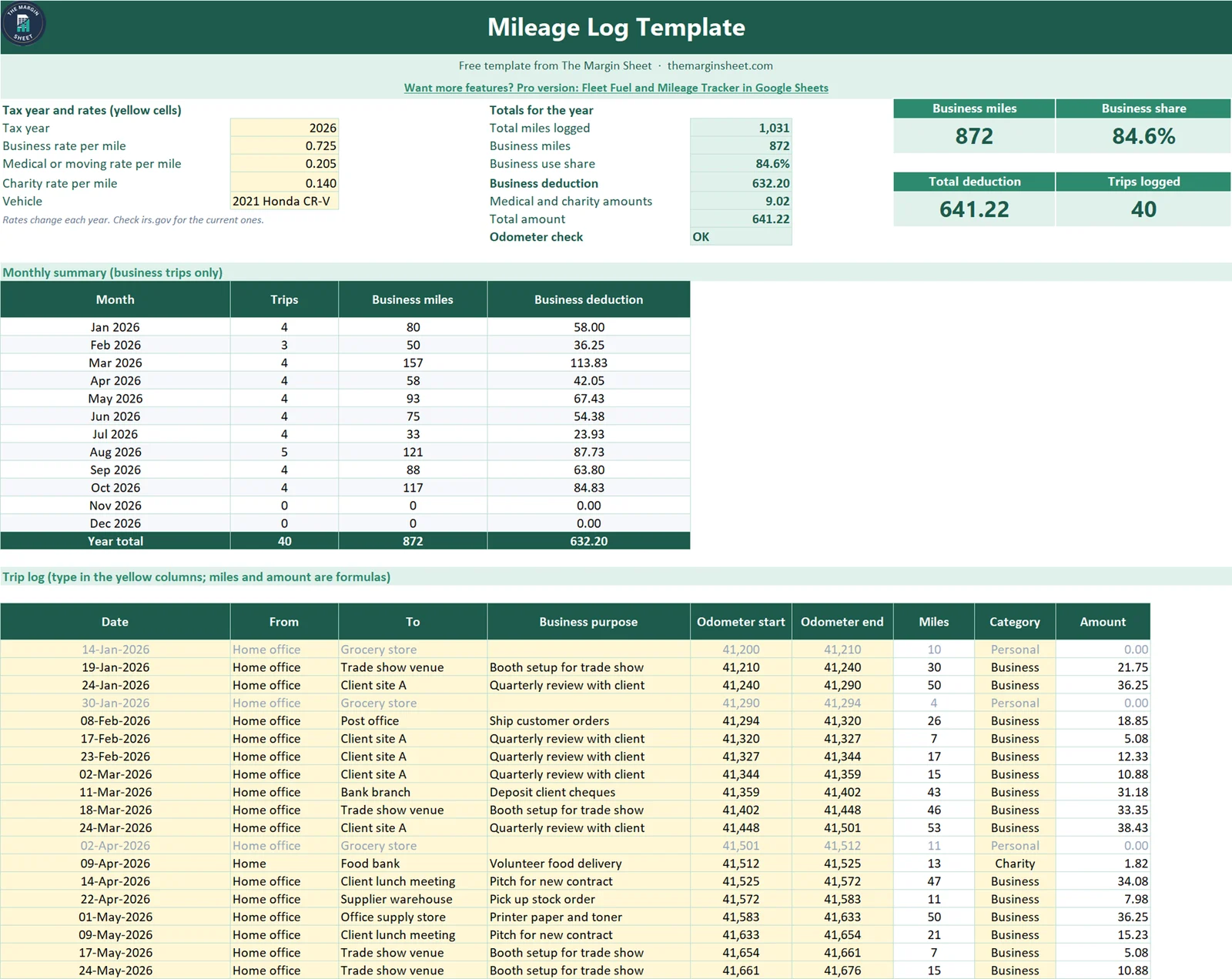
A mileage log is a record of every trip with the date, where you went, why you went, the odometer readings and the miles driven. The free mileage log template below works out the miles for each trip, applies the right rate by category and adds up the year. In the sample, 40 trips total 1,031 miles, 872 of them for business, which comes to 632.20 at 0.725 per mile.
Free download
Mileage Log Template (.xlsx, also opens in Google Sheets)
Working formulas, sample data and a How to use sheet. Opens in Excel, or import it into Google Sheets.
What a mileage log needs to show
If you drive for work and want to claim the standard mileage rate, you need a record that holds up. The IRS expects each business trip to show the date, the destination, the business purpose and the miles. The odometer readings at the start and the end of the trip are the easiest proof, and a log written at the time of the trip is far more convincing than one rebuilt from memory at tax time.
Commuting between home and a regular workplace is not business mileage. Personal trips do not count either. A good log therefore records every trip, labels each one, and only applies a rate to the ones that qualify. That is how this template is built.
What is inside the free mileage log template
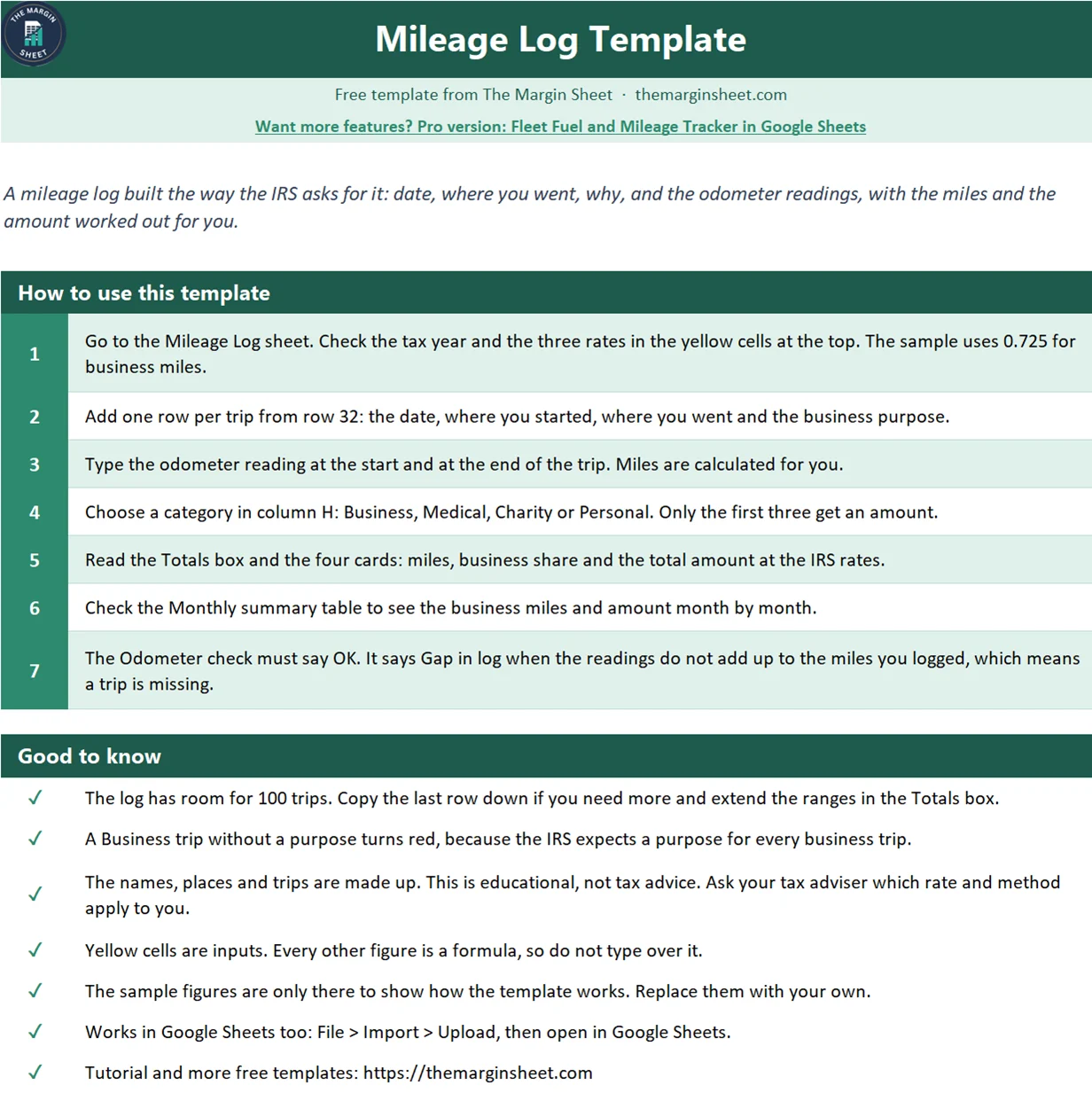
The workbook has a How to use sheet and one Mileage Log sheet. It has no macros and opens in Google Sheets. At the top, yellow cells hold the tax year, three rates and the vehicle. A Totals box shows the miles, the business share and the amount, four cards repeat the main numbers, and a monthly summary adds up the business trips. Below that is the trip log with room for 100 trips.
The vehicle, the places and the trips are made up: a 2021 Honda CR-V that starts the year at 41,200 on the odometer. The rates in the sample are 0.725 for business, 0.205 for medical or moving and 0.14 for charity. Rates change every year, so check the current notice on irs.gov and type your own into the yellow cells.
Who this mileage log is for
- Freelancers, consultants and sole proprietors who drive to clients and suppliers.
- Small business owners who reimburse staff for using their own car.
- Anyone who volunteers or drives to medical appointments and wants one record for all of it.
This is educational content, not tax advice. Which method and which rate apply to you depends on your situation, so ask your tax adviser before you file.
How to build the mileage log step by step
The log starts in row 32. Column A is the date, B and C are the from and to places, D is the business purpose, E and F are the odometer readings, G is the miles, H is the category and I is the amount. The three rates sit in B6, B7 and B8.
Step 1: Calculate the miles for each trip
Miles are the end reading minus the start reading. The IF keeps the cell empty until both readings are typed. In G32:
=IF(OR(E32="",F32=""),"",F32-E32)
The first trip starts at 41,200 and ends at 41,210, so it shows 10 miles. Copy the formula down all 100 rows. Because blank rows return an empty string, they do not disturb any total.
Step 2: Apply the right rate to each category
Column H is a drop-down with Business, Medical, Charity and Personal. A nested IF turns the category into a rate. In I32:
=IF(G32="","",G32*IF(H32="Business",$B$6,IF(H32="Medical",$B$7,IF(H32="Charity",$B$8,0))))
Personal falls through to 0, so it adds miles to the log but nothing to the amount. The dollar signs lock the rate cells so the formula can be copied down safely. A 30 mile business trip shows 21.75.
Step 3: Total the year with SUMIF
The Totals box uses SUMIF to add only the rows that match a category. Business miles in E6:
=SUMIF(H32:H131,"Business",G32:G131)
Business deduction in E8 is the same pattern on column I:
=SUMIF(H32:H131,"Business",I32:I131)
The sample shows 872 business miles and 632.20. Medical and charity trips are added separately in E9, which comes to 9.02, so the total amount in E10 is 641.22.
Step 4: Work out the business use share
The share of driving that was for business is useful when you also track fuel, insurance and repairs. In E7:
=IF(E5=0,0,E6/E5)
872 business miles out of 1,031 total gives 84.6%. The IF stops a divide by zero error on a new, empty log.
Step 5: Build the monthly summary with SUMIFS
The table in rows 15 to 26 starts with the first day of each month. In A15 the formula is =DATE($B$5,1,1) and each month after it is =DATE($B$5,2,1), and so on. The business miles for a month in C15 are:
=SUMIFS($G$32:$G$131,$H$32:$H$131,"Business",$A$32:$A$131,">="&A15,$A$32:$A$131,"<"&EDATE(A15,1))
The two date conditions pick every trip from the first of the month up to, but not including, the first of the next month. January shows 80 business miles and 58.00. March is the busiest month with 157 miles. The trips count in column B uses COUNTIFS with the same two dates.

Step 6: Add an odometer check
If the log is complete, the last end reading minus the first start reading equals the miles you logged. In E11:
=IF(COUNT(F32:F131)=0,"",IF(ROUND(MAX(F32:F131)-MIN(E32:E131)-E5,1)=0,"OK","Gap in log"))
The sample goes from 41,200 to 42,231, a difference of 1,031, and that matches the 1,031 miles in the log, so the cell says OK. Skip a trip and it says Gap in log, which is a prompt to find the missing entry while you still remember it.
Step 7: Flag a business trip with no purpose
Conditional formatting on column D turns a cell red when the category is Business, the miles are filled in and the purpose is blank. The rule is:
=AND($H32="Business",$D32="",$G32<>"")
A second rule colours Miles red when the end reading is lower than the start reading, which is almost always a typing mistake.
Common mistakes
- Logging only the business trips. Then the odometer check cannot work and the readings have gaps. Log personal trips too.
- Counting the commute. Driving from home to a regular workplace is not business mileage.
- Writing the log at the end of the year. Estimated trips are easy to challenge. Enter each trip within a day or two.
- Leaving the purpose empty. “Client meeting” is vague. “Quarterly review with client” is better.
- Using last year’s rate. The rates change. Update the yellow cells at the start of every year.
Adapt the mileage log to your own business
Replace the sample trips with your own and type your vehicle in B9. Keep one workbook per vehicle and per year. If you track your other costs in a spreadsheet as well, the bookkeeping template in Excel is a good place to record the mileage amount as an expense. If you pay staff, see how mileage reimbursement fits next to wages in the payroll template in Excel, and the profit and loss template shows where the vehicle cost lands in your results.
Want more than the free file?
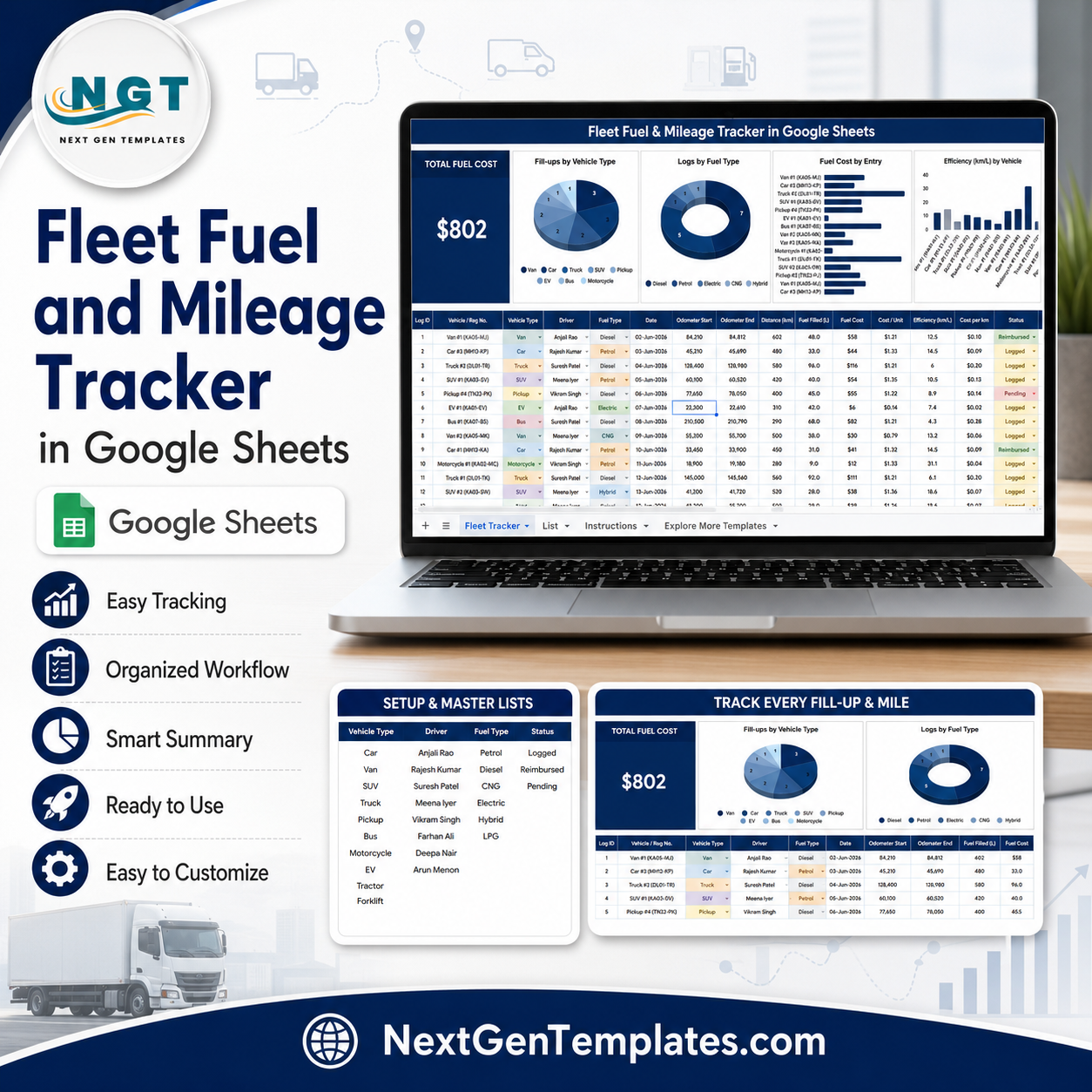
Fleet Fuel and Mileage Tracker in Google Sheets
Track fuel spend, fill-ups, mileage, fuel type, driver and vehicle type, and km/L efficiency by vehicle in one Google Sheets dashboard.
Your next step: download the file, type the odometer reading from your car today, and log your next three trips before the week is over.
Frequently asked questions
What should a mileage log include?
For every trip: the date, where you went, the business purpose, the odometer reading at the start and the end, and the miles driven. The IRS also expects the log to be kept at the time of the trip, not rebuilt later.
How do I calculate mileage in Excel?
Subtract the start odometer reading from the end reading, then multiply the miles by the rate. In the template, =F32-E32 gives the miles and =G32*$B$6 gives the amount for a business trip.
Is commuting counted as business mileage?
No. Driving between your home and a regular place of work is a commute and does not qualify. Trips to clients, suppliers and temporary work sites can qualify. Check the rules with your tax adviser.
Can I use a spreadsheet instead of a mileage app?
Yes. The IRS asks for adequate records, not a specific tool. A spreadsheet with the date, purpose and odometer readings for each trip is a valid way to keep them, as long as you fill it in regularly.
Does this mileage log work in Google Sheets?
Yes. Upload the file to Google Drive and open it with Google Sheets. SUMIFS, COUNTIFS, EDATE, the drop-down and the conditional formatting all work there.
Free download
Mileage Log Template (.xlsx, also opens in Google Sheets)
Working formulas, sample data and a How to use sheet. Opens in Excel, or import it into Google Sheets.
Want the finished version?
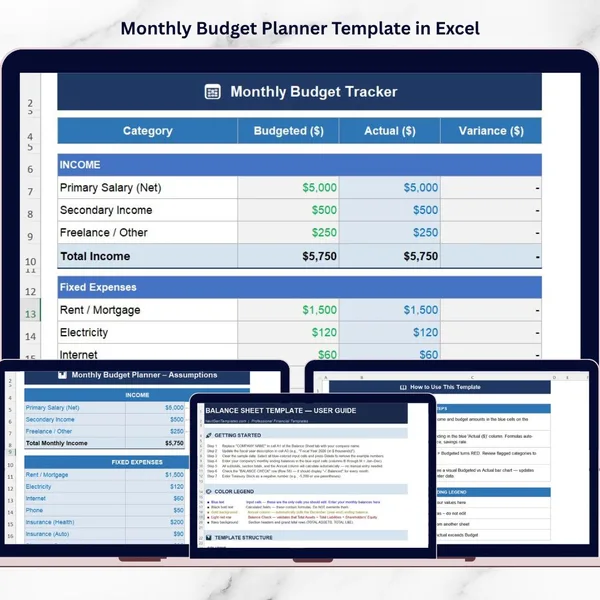
Monthly Budget Planner Template in Excel
Plan income and spending and compare budget against actual every month.
View the pro template
PK is the founder of PK: An Excel Expert and NextGenTemplates.com and a corporate trainer in Excel, VBA and Power BI. Since 2020 he and his team have built Excel and Google Sheets tutorials and templates for business users.
Education only. Not financial, tax or investment advice.